How to Create a Save the Date
A simple walkthrough for creating your save the date in Invyt, from choosing a template to sending personalised links to guests.

Invyt makes it easy to create a polished save the date before you send your full invitation. This guide follows the actual in-app flow so you can choose a design, personalise the details, and share it with guests step by step.
Step 1: Start from your dashboard
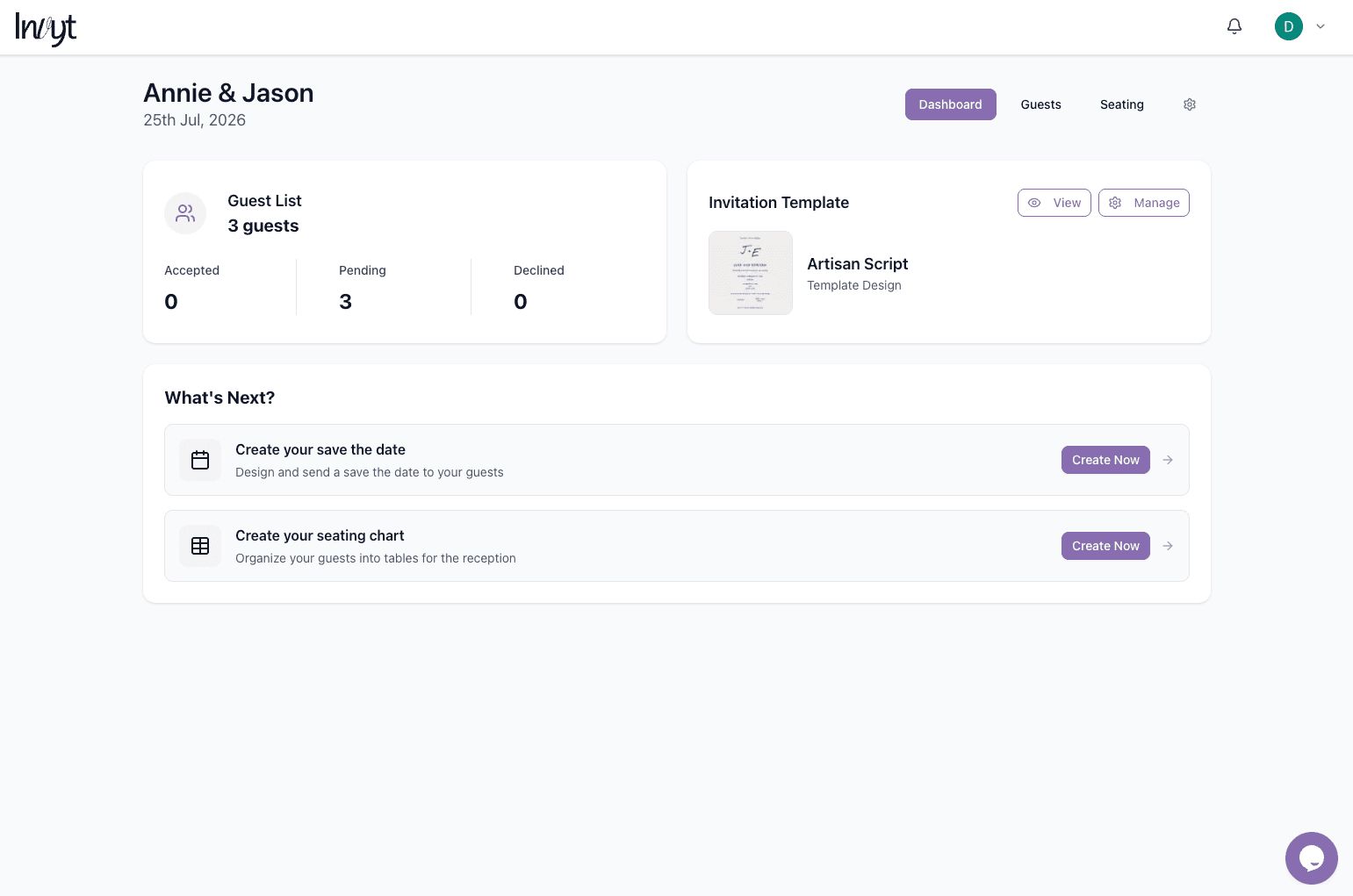
From the dashboard, look for the What's Next section and choose Create your save the date. This is the quickest way to jump into the setup flow after your wedding and guest list are already in place.
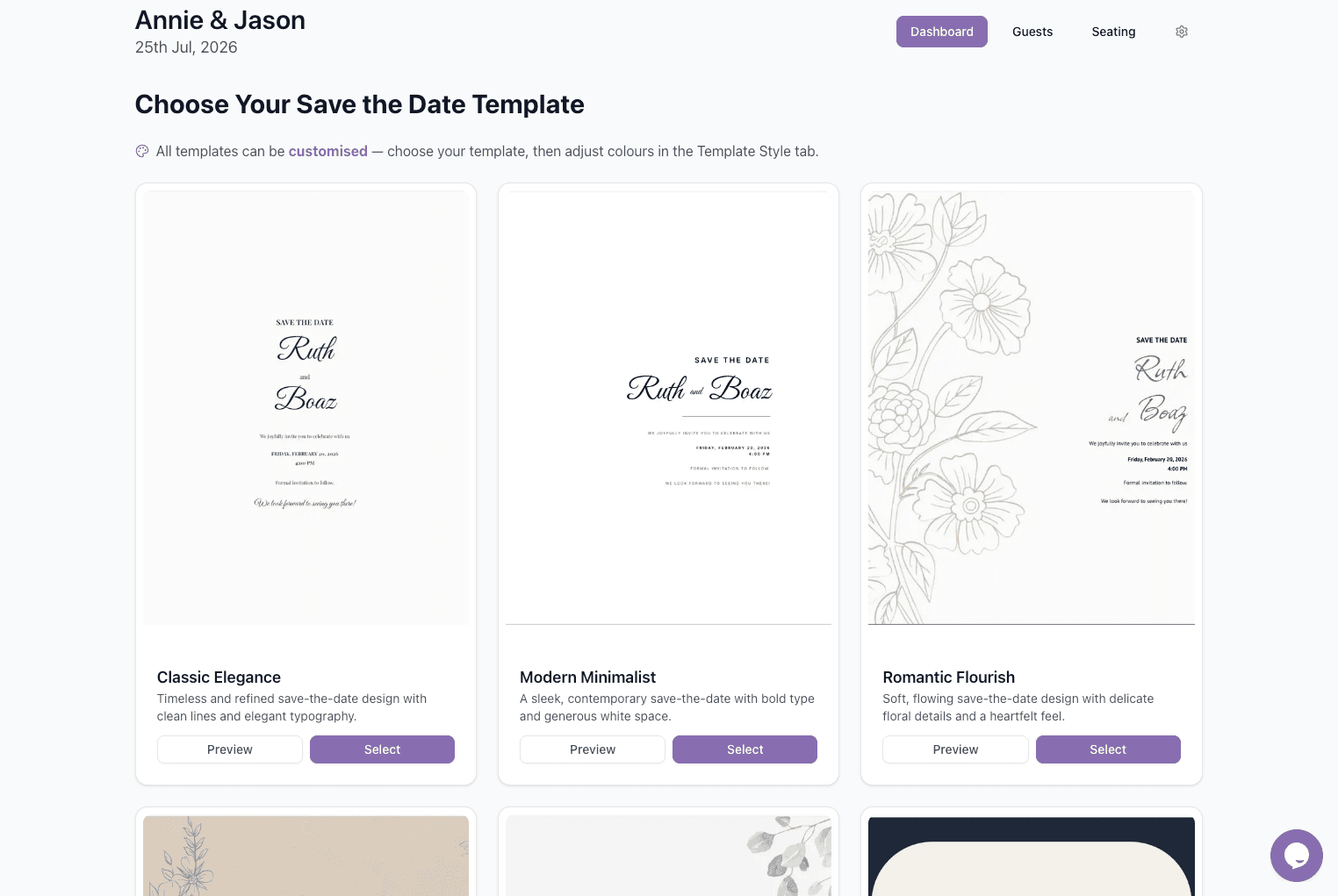
Step 2: Choose a save the date template
Invyt shows a set of save-the-date templates with preview and select actions. Pick the layout that best fits your style knowing that you can still customise colours and content later.
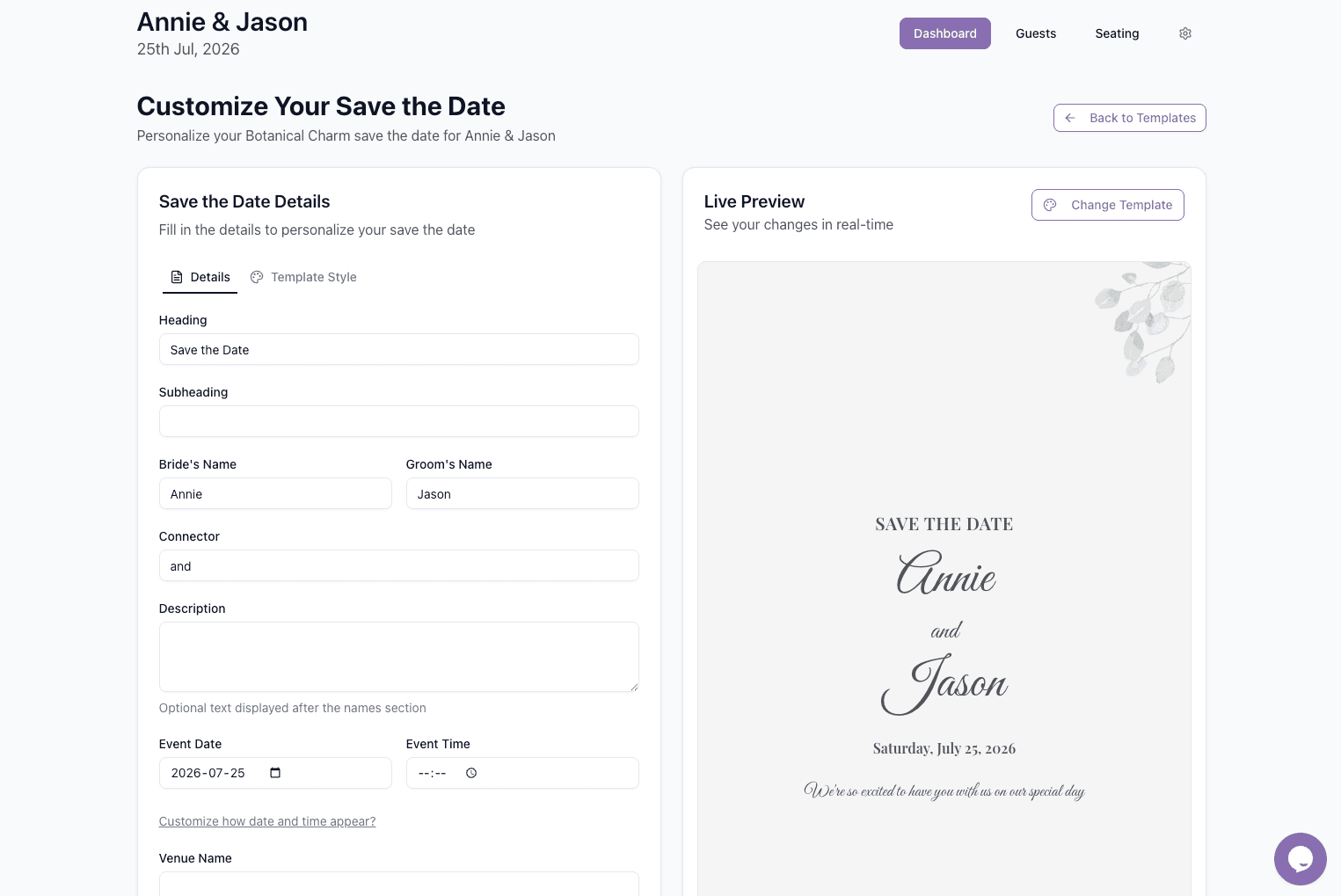
Step 3: Customise the save the date details
After selecting a template, fill in the details panel and watch the live preview update on the right. You can adjust the heading, names, connector, optional description, event date and time, and venue information until the layout feels right.
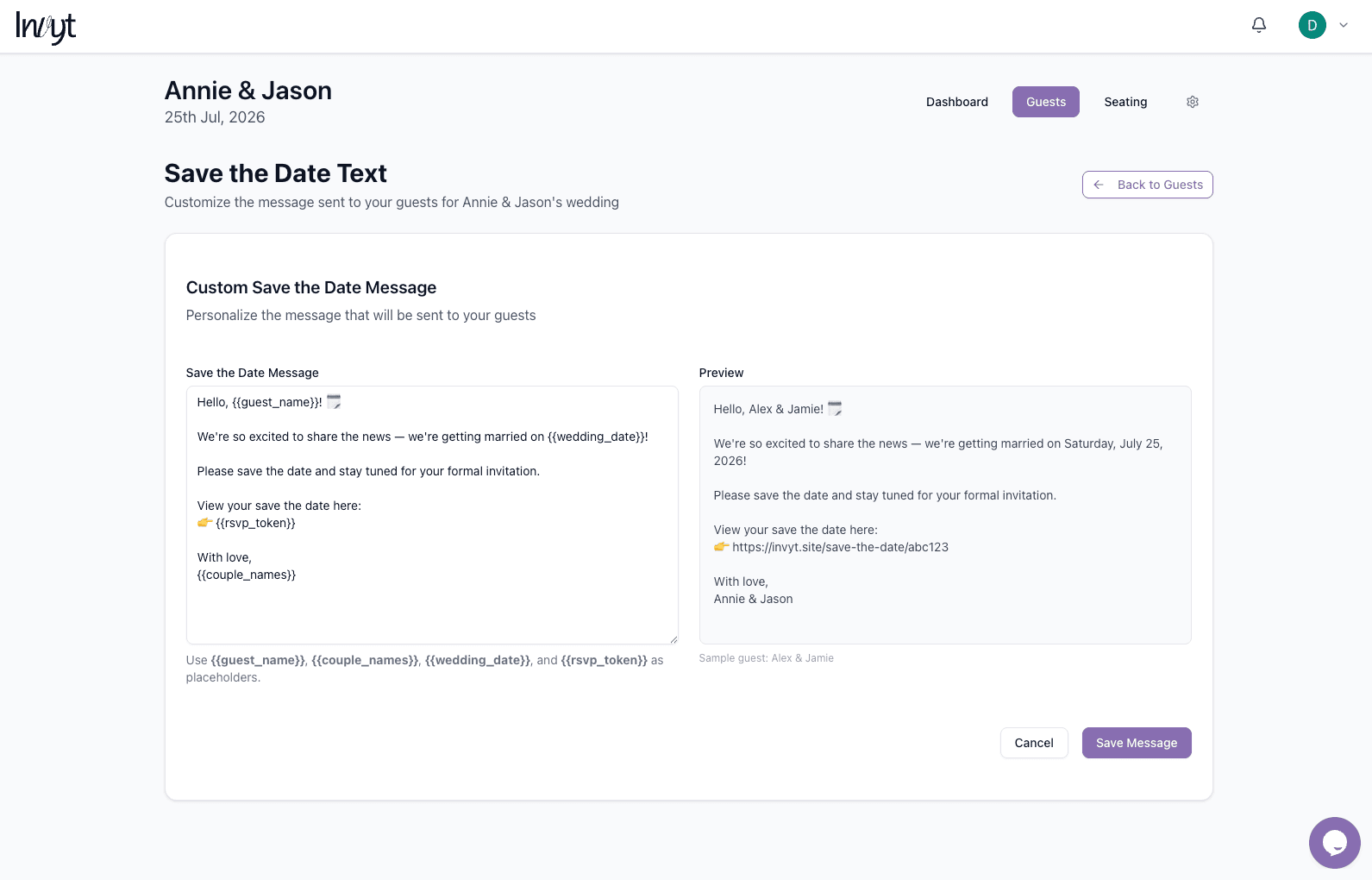
Step 4: Edit the save the date message
Once the design is ready, customise the message that will be shared with guests. Invyt supports placeholders so each message can automatically include the guest name, couple names, wedding date, and the guest-specific link.
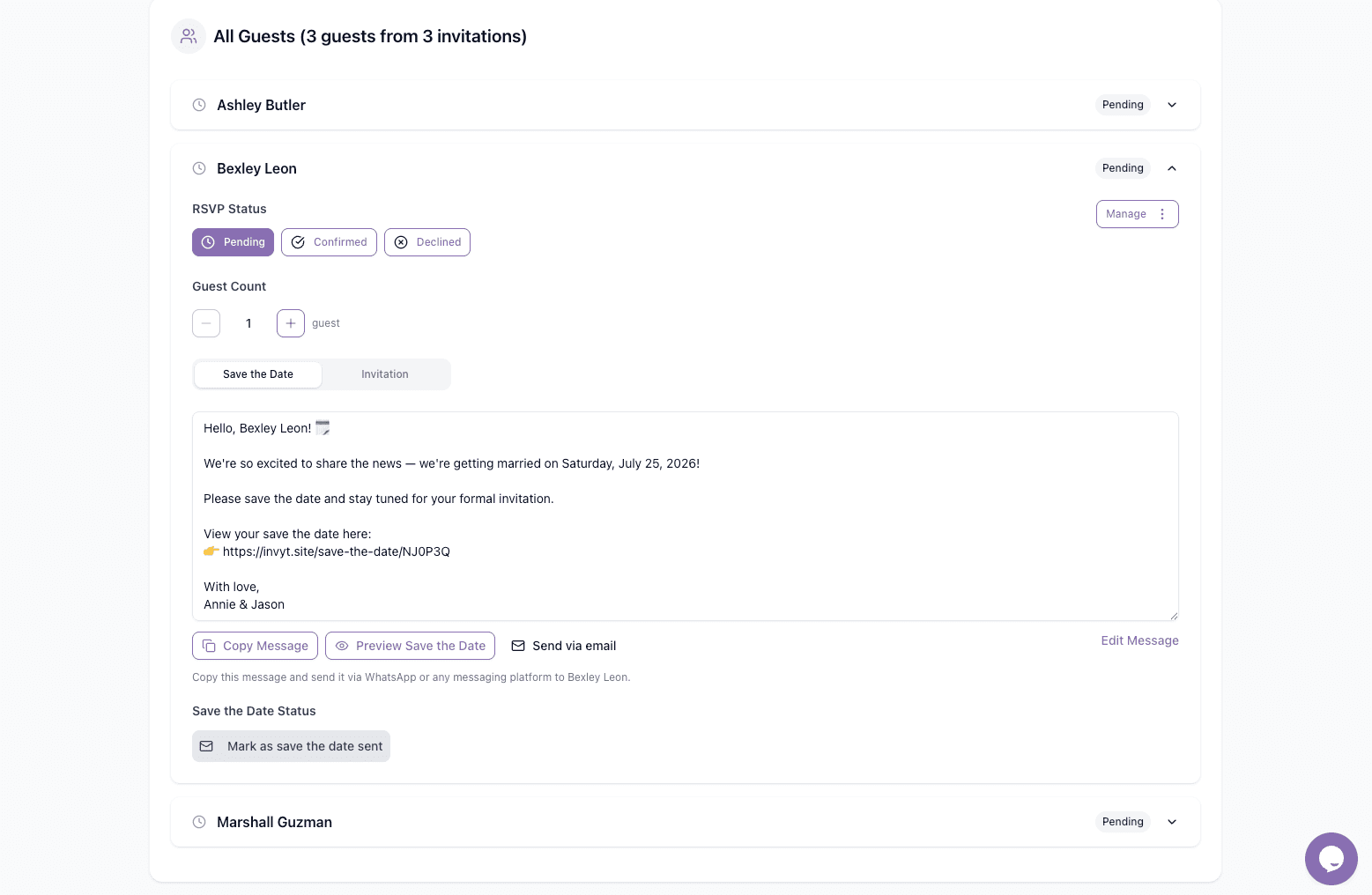
Step 5: Copy, preview, and send to guests
Inside the guest list, each guest invitation includes a Save the Date tab with their personalised message. From there you can copy the message, preview the save the date, send it by email, or share it yourself through messaging apps, then mark it as sent.
Tip: A save the date is ideal for giving guests early notice while you finalise the full invitation. You can send this first, then follow up later with the formal invitation from the same wedding workspace.
What happens next
After your save the dates are sent, guests can open their personalised link and keep your wedding date in mind while you continue preparing the full invitation. Back in Invyt, you can manage guest status, update your design, and move on to the rest of your wedding setup when you're ready.